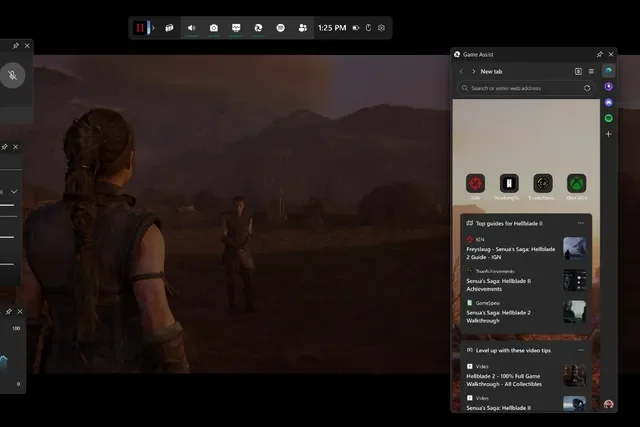

Microsoft has officially launched Game Assist, a Steam-like in-game browser overlay for Windows 11, making it easier for gamers to access tips, guides, and walkthroughs without ever leaving their game. After months of beta testing, the Microsoft Edge Game Assist feature is now available in the stable version of the browser, bringing game-aware functionality to the Windows Game Bar. Much like Valve’s Steam overlay browser, Game Assist detects the game you’re playing and automatically suggests relevant tips and guides in a side panel. https://youtu.be/NZadyqM7Gxs To enable Game Assist, users can navigate to Microsoft Edge > Settings > Search for "Game Assist" and install the widget. Even if a game isn’t officially supported, players can still use Game Assist to browse guides, forums, or any other websites while playing. Game Assist leverages cookies, autofill, and favorites from the standard Microsoft Edge browser, meaning your saved bookmarks and preferences carry over seamlessly. With Game Assist, Microsoft is further integrating Edge into the gaming experience, offering PC gamers a more seamless way to access information without interrupting gameplay. Microsoft is testing a new feature in its Xbox app on Windows 11 that makes it easier for PC gamers to install and launch third-party apps and even rival game stores. Read more in our articles including "Microsoft Rolls Out Steam-Style Game Assist Overlay for Windows 11 Gamers" and "Microsoft Tests New Xbox App Feature That Lets PC Gamers Install and Launch Other Apps Easily".
Microsoft has officially launched Game Assist, a Steam-like in-game browser overlay for Windows 11, making…
Jan 22, 2025
Microsoft is testing a new feature in its Xbox app on Windows 11 that makes…
Aug 23, 2025
Microsoft is testing a new feature in its Xbox app for Windows 11 that could…
Aug 22, 2025
Microsoft is taking nostalgia to the next level. Today, the company launched Retro Classics, a…
May 22, 2025These past months have been a big blast for the gaming community with the launch…
Feb 19, 2017
We’re back with another Game Pass list! With the best RPGs, platformers, and FPS games…
Jul 26, 2022Microsoft has officially launched Game Assist, a Steam-like in-game browser overlay for Windows 11, making it easier for gamers to access tips, guides, and walkthroughs without ever leaving their game. After months of beta testing, the Microsoft Edge Game Assist feature is now available in the stable version of the browser, bringing game-aware functionality to the Windows Game Bar.
Much like Valve’s Steam overlay browser, Game Assist detects the game you’re playing and automatically suggests relevant tips and guides in a side panel. https://youtu.be/NZadyqM7Gxs To enable Game Assist, users can navigate to Microsoft Edge > Settings > Search for "Game Assist" and install the widget. Even if a game isn’t officially supported, players can still use Game Assist to browse guides, forums, or any other websites while playing.
Our coverage of Microsoft Game Assist includes: "Microsoft Rolls Out Steam-Style Game Assist Overlay for Windows 11 Gamers"; "Microsoft Tests New Xbox App Feature That Lets PC Gamers Install and Launch Other Apps Easily"; "Microsoft Adds PC Game Launchers and Apps to Xbox App on Windows". Each article provides unique insights and information.