
And I'm sure it has crossed your mind at least once on how you wish you were able to play these games again. Helpful tip: You can transfer your games to RetroArch's's "Downloads" folder to be able to access your games quickly. Do this by entering in: "MOUNT [Drive-Letter] [Local-Directory]" For example, if you saved all your games in a folder named "DOSGames" under drive (D:), type in the ff: "MOUNT C: D:\DOSGames" - This tells DOSBox to treat the C:\DOSGames folder as the (C:) drive. Then type in: "C:" - To make DOSBox put you on the (C:) drive, but this is actually your "DOSGames" folder. Surprisingly, online emulators do exist, and you can actually play these games straight from your browser without any additional things to install. Conveniently, gamepad controllers (wired or wireless) work natively with online emulators, so you can enjoy playing your games just like you would on the console as well. During a gameplay demo at Gamescom 2025, fans got a sneak peek of how this works. Playing these games before and after long fragging sessions can help further strengthen the muscles associated with moving the mouse, as well as keep your hand-eye coordination sharp. Read more in our articles including "How to Play Retro Games on your PC" and "Bangkok’s first gamescom asia x Thailand Game Show sets new record with over 206,000 visitors".
No matter how awesome games are getting today, retro games will always have a place…
Apr 27, 2020
The inaugural gamescom asia x Thailand Game Show 2025 made history as Southeast Asia’s largest…
Oct 23, 2025
EA has revealed the final system requirements for Battlefield 6, and they are surprisingly modest.…
Aug 31, 2025
High on Life 2 is upping the craziness of its comedy shooter world, not just…
Aug 24, 2025When it comes to playing FPS games, things like game sense, strategy, and map awareness are…
Oct 20, 2017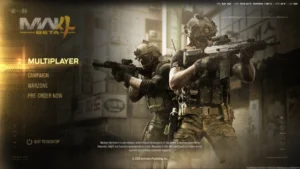
With the latest addition to the Call of Duty franchise, Modern Warfare 4, dropping…
Sep 1, 2026And I'm sure it has crossed your mind at least once on how you wish you were able to play these games again. Helpful tip: You can transfer your games to RetroArch's's "Downloads" folder to be able to access your games quickly.
Do this by entering in: "MOUNT [Drive-Letter] [Local-Directory]" For example, if you saved all your games in a folder named "DOSGames" under drive (D:), type in the ff: "MOUNT C: D:\DOSGames" - This tells DOSBox to treat the C:\DOSGames folder as the (C:) drive. Then type in: "C:" - To make DOSBox put you on the (C:) drive, but this is actually your "DOSGames" folder. Surprisingly, online emulators do exist, and you can actually play these games straight from your browser without any additional things to install.
Our coverage of How to Play Old Games on your PC Yugatech includes: "How to Play Retro Games on your PC"; "Bangkok’s first gamescom asia x Thailand Game Show sets new record with over 206,000 visitors"; "Battlefield 6 system requirements make it playable on older PCs". Each article provides unique insights and information.